See when your CDs mature before deciding what to renew or leave available. This free CD ladder spreadsheet organizes actual contract dates into a twelve-month calendar, with principal and interest shown separately. It also includes an optional principal-only renewal scenario.
Download the XLSX without registration, use the fictional examples to understand the results, then replace them with your records. If you prefer to build a smaller schedule yourself, the Excel tutorial below creates a two-CD version with the same clearly stated APY convention.
Download and use the CD ladder spreadsheet
Download the free XLSX from this page, save a working copy, and open it in Excel. Start with the Guide for operating instructions. Deposits is your editable register, Availability is the monthly report, and Calculations shows the linked contract results and optional renewal scenarios.
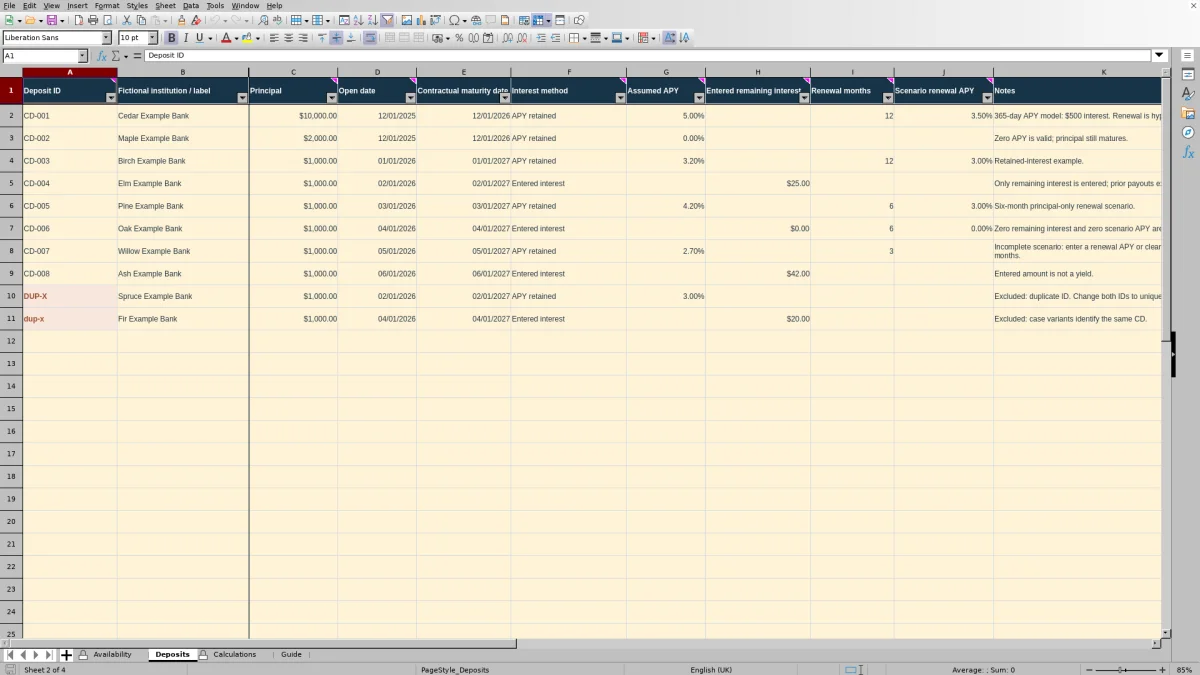
The file includes ten fictional records rather than an empty register. For orientation, the first deposit holds $10,000 at an assumed 5% APY for 365 days and produces $500 of modeled interest. The report keeps that interest separate from the principal returning at maturity.
- Replace the examples. In Deposits, use the Sample marker in column L to identify the sample records. Clear their input contents across A:L, including notes and sample markers, without deleting worksheet rows. If you filter for Sample, clear only those visible sample input cells, then remove the filter. Do not clear Calculations.
- Enter one contractual CD per row. Use Deposits!A2:L201, which supports 200 CDs. Enter a unique Deposit ID, principal in USD, actual opening date, and contractual maturity date. Labels and notes can help you identify the supporting records.
- Choose an interest method. Select APY retained in column F and enter an effective APY in G, or select Entered interest and enter the dollar amount still payable at maturity in H. Optional renewal inputs in I:J can wait.
- Set the reporting dates. On Availability, put your review date in B2 and the first day of your desired reporting month in B3. Confirm that B4 says Controls ready.
- Review and save. Read monthly principal and interest separately. Check Calculations for contract warnings before treating the totals as complete. Save the populated XLSX and inspect the Availability print preview.
The result is contractual maturity availability before renewal. It is not the cash left after every planned transaction. Use the schedule to identify dates that need attention, then consult the underlying contract before making a withdrawal or renewal decision.
Read the sample maturity calendar
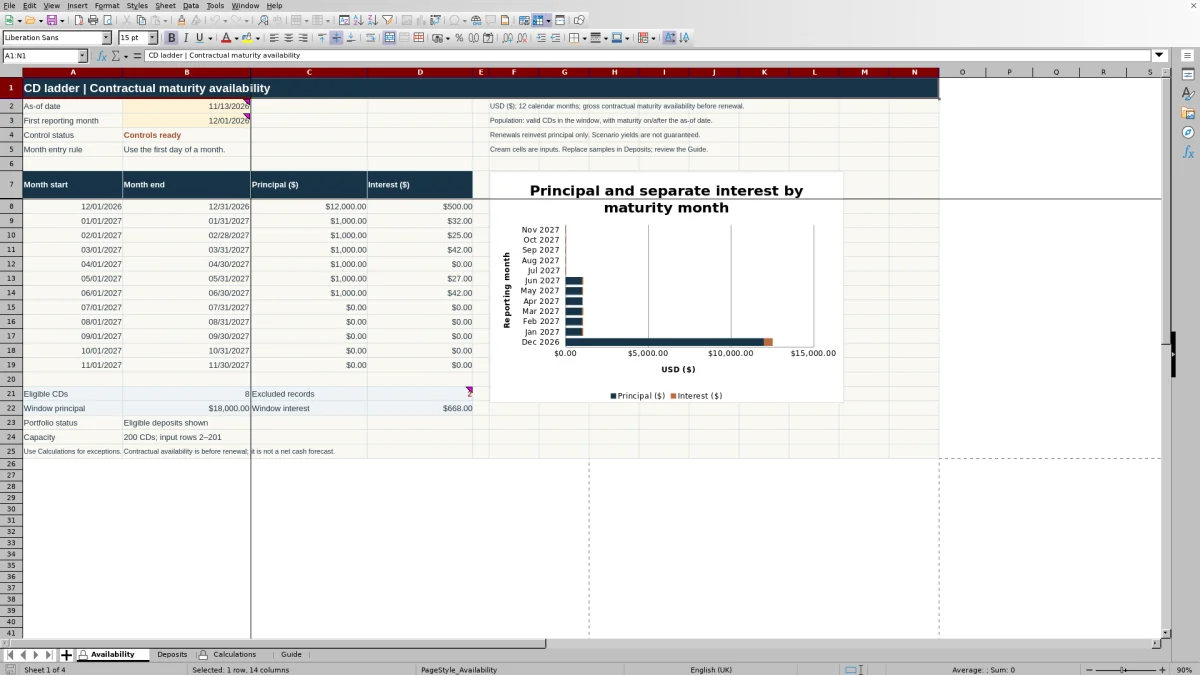
The supplied example uses an as-of date of 11/13/2026 in Availability!B2 and a first reporting month of 12/01/2026 in B3. Its twelve-month window runs through 11/30/2027. Only valid contracts with maturities inside that window and on or after the as-of date contribute to the report.
Follow CD-001 in Deposits row 2. It has $10,000 of principal, opens on 12/01/2025, and matures on 12/01/2026. Its APY retained method and 5% assumption apply over 365 days, producing $500 of interest in Calculations!E2. CD-002, in the next row, contributes another $2,000 of principal on the same maturity date. Its explicit 0% APY produces no interest but does not remove its principal from the schedule.
Together, those records explain December's $12,000 principal and $500 interest. Their combined amount is $12,500; that is the sum of the two reported amounts, not an additional output column in the download. Six more unique $1,000 CDs bring the full window to $18,000 of principal and $668 of interest across eight eligible CDs. The two sample records with duplicate IDs are excluded.
To explore the rate dependency in a copy, change Deposits!G2 to 0%. Independent arithmetic gives an expected December interest amount of $0 and window interest of $168, with principal unchanged. Restore the example afterward or replace it with your actual information. This isolates an interest assumption without changing the maturity schedule.
Use the chart to spot concentrated maturities and months with no principal becoming available. It uses the same monthly amounts as the report, not a separate forecast or a comparison of yields. Before connecting a month to a planned expense, check the exact contract dates: a monthly bar does not mean its entire amount is available on the first day of that month.
How to create a CD ladder in Excel
For a smaller version, create a new workbook with one sheet named Practice. These are tutorial cells, not instructions for changing the download. The exercise uses two fictional CDs and two reporting months. It assumes interest stays in each CD until maturity.
Enter the two deposits
In Practice!A1:G1, enter these headers in order: Deposit ID, Principal (USD), Open date, Contractual maturity date, Assumed APY, Modeled interest (USD), and Modeled proceeds (USD).
- In A2:E2, enter CD-A, 10000, 12/01/2025, 12/01/2026, and 5%.
- In A3:E3, enter CD-B, 2000, 01/01/2026, 01/01/2027, and 0%.
Enter the dates as actual Excel dates and display them as MM/DD/YYYY. Format E2:E3 as percentages and monetary cells as USD with two decimal places. These assumptions are examples, not bank offers.
In F2, calculate the first deposit's interest. Subtracting the dates gives elapsed days; dividing by 365 gives the model's year fraction. The power applies effective APY over that fraction, and ROUND keeps the result to cents. COUNT leaves the result blank unless all four required numeric inputs are present.
=IF(COUNT(B2:E2)<4,"",ROUND(B2*((1+E2)^((D2-C2)/365)-1),2))In F3, enter the same calculation for the second deposit:
=IF(COUNT(B3:E3)<4,"",ROUND(B3*((1+E3)^((D3-C3)/365)-1),2))In G2, add principal to the first row's rounded interest. If interest is blank, proceeds remain blank too.
=IF(F2="","",B2+F2)In G3, calculate the second row's proceeds:
=IF(F3="","",B3+F3)Group the proceeds by maturity month
In A6:E6, enter Month start, Month end, Principal (USD), Interest (USD), and Combined proceeds (USD). Enter 12/01/2026 in A7. Display A7:B8 as dates and C7:E8 as USD amounts.
In A8, advance the starting date by one calendar month, rather than adding an assumed thirty days:
=EDATE(A7,1)In B7, find the last day of the first reporting month:
=EOMONTH(A7,0)In B8, find the last day of the second reporting month:
=EOMONTH(A8,0)In C7, sum principal whose maturity falls between December's start and end dates, including both endpoints. The dollar signs keep the two-row source ranges fixed.
=SUMIFS($B$2:$B$3,$D$2:$D$3,">="&A7,$D$2:$D$3,"<="&B7)In D7, use the same date conditions to sum modeled interest instead of principal:
=SUMIFS($F$2:$F$3,$D$2:$D$3,">="&A7,$D$2:$D$3,"<="&B7)In E7, combine December's principal and interest:
=SUM(C7:D7)In C8, sum principal for January using that row's month boundaries:
=SUMIFS($B$2:$B$3,$D$2:$D$3,">="&A8,$D$2:$D$3,"<="&B8)In D8, sum January's interest:
=SUMIFS($F$2:$F$3,$D$2:$D$3,">="&A8,$D$2:$D$3,"<="&B8)In E8, combine January's amounts:
=SUM(C8:D8)Enter each formula in its stated cell; no additional copied range is needed. The SUMIFS formulas use aligned amount and maturity ranges. Their conditions are fixed calendar comparisons, not searches for deposit IDs.
Check the result and change one input
CD-A should show $500 of interest and $10,500 of proceeds. CD-B should show $0 of interest and $2,000 of proceeds. December should therefore contain $10,000 principal, $500 interest, and $10,500 combined proceeds. January should contain $2,000 principal, no interest, and $2,000 combined proceeds. As an independent check, the first date span is exactly 365 days, so $10,000 multiplied by 5% gives $500.
Now change B2 to 12000. F2 should become $600, and both G2 and December's combined proceeds in E7 should become $12,600. January remains unchanged. The additional principal changes the amount available at the existing maturity date; it does not create another maturity.
Save your small workbook. Its COUNT guard helps distinguish missing inputs from an explicit zero, but it is not full validation. This version covers only the two deposit rows and two months shown, with retained APY only. It has no as-of filter, renewal scenario, or duplicate and invalid-date controls. Use the downloadable workbook when you need those recordkeeping checks.
Choose the right interest input
Choose the method that matches what you are trying to record. In the download, APY retained uses a hypothetical effective annual yield and assumes all modeled interest remains in the CD until maturity. The model measures actual elapsed days from opening to maturity and divides by 365. It does not use months divided by twelve, and its denominator does not change to 366 in a leap year.
This matters when a term crosses unequal-length months. A calendar six-month term is not automatically exactly half a model year. Likewise, changing the as-of date only filters which maturities appear; it does not shorten the opening-to-maturity interval used to estimate retained interest. Each deposit's modeled interest is rounded to cents before the monthly report adds the amounts.
Entered interest takes the dollar amount in Deposits column H directly, without converting it to a yield. Use this method for separately paid interest when you know the remaining amount payable at maturity. Exclude interest already paid, and keep that earlier cash out of principal. The file does not create a schedule of those earlier payouts.
Nominal APR is not supported and must not be substituted for APY in column G. Enter 5% as 5% or 0.05, not the number 5. When switching methods, clear the unused method-specific input so another reader can understand the record, even though the calculation ignores that unused field.
An explicit 0% APY or $0 remaining interest is a valid statement. A blank required input means information is missing, not that interest is zero. Reconcile the selected method and amount against your contract or the institution's information before using the result; the modeled interest is not a guaranteed payout or a bank-specific compounding calculation.
Keep renewal assumptions separate
Use the optional renewal fields when you want to examine one possible next term without changing the original contract. In Deposits column I, enter positive whole renewal months. In J, enter a nonnegative Scenario renewal APY. Both inputs are needed. Leaving both blank means No scenario; entering valid months with 0% APY means a deliberate zero-interest scenario.
The first sample deposit assumes a twelve-month renewal at 3.5% APY. Its scenario maturity is 12/01/2027, and its $10,000 original principal produces $350 of scenario interest. Read the resulting date, principal, interest, and status in Calculations columns F:I. Calendar months are advanced from contractual maturity using EDATE, rather than approximating each month as thirty days.
The workbook models one renewal of original principal only, not a chain of rollovers. Original contractual interest remains separate cash and is not folded into the renewal principal. An incomplete renewal scenario can show a warning while the original contract remains valid.
Availability continues to show the original contractual maturity event. It neither subtracts principal you plan to reinvest nor adds the scenario's later maturity to the chart. Do not count the same $10,000 as both money available to spend at the original maturity and money invested for the renewal.
Keep the scenario identified as an assumption in your notes. The file does not execute a renewal or promise that its terms will be offered. If you actually renew, preserve the earlier report and update your register with the confirmed principal, dates, and interest information for the new contract.
Find missing deposits and correct warnings
Start with the reporting controls when the whole monthly report is blank. Availability!B2 must contain a valid review date, and B3 must contain the first day of a reporting month. Correct reporting controls means the monthly outputs are withheld until those inputs are corrected. By contrast, valid controls with no eligible maturities produce zero monthly totals and No eligible deposits.
A deposit must meet three conditions to appear: its Contract status must be Valid, its maturity must fall inside the twelve-month window, and its maturity must be on or after the as-of date. A valid deposit outside those dates is not an erroneous contract. Also, Excluded records counts all invalid entered contracts, including ones outside the window; it is not a count of every record absent from the chart.
For a missing individual deposit, read Calculations column B. Correct the source record in Deposits rather than overwriting protected results. Check these inputs together:
- Principal must be numeric and greater than zero.
- Opening and maturity must be actual whole dates, with maturity strictly after opening.
- The interest method must be one of the two supported choices.
- The selected method must have its required numeric APY or remaining-interest amount.
- The Deposit ID must identify one contract uniquely.
Fully unused input rows stay blank in Calculations. An invalid entered contract can instead show zero eligible amounts alongside a warning. Read the status before interpreting that zero as a genuine zero-interest result. If all input contents are cleared in a disposable copy, the formulas are designed to produce zero monthly totals and No eligible deposits; do not clear the calculation formulas themselves.
Duplicate IDs are compared literally and without regard to capitalization. Both occurrences are excluded, so changing only letter case does not fix the problem. The sample DUP-X and dup-x records demonstrate this. Punctuation is treated as part of the ID, not as a search pattern. Check whether you entered one real contract twice or assigned the same ID to two different contracts, then correct the underlying identity issue.
Renewal warnings appear separately in Calculations column I. Supply both months and APY, or clear both if you do not want a scenario. For a full register, include row 201 in your review; it is the last supported input row.
If a status reports an overflow, inspect the principal, percentage entry, and date span. Review statuses after pasting records as well as after typing them. An input prompt alone does not establish that imported amounts and dates are correct.
Save and maintain a usable report
Availability!B2 is a deliberate review snapshot, not a date that automatically advances. At each review, update it and the first reporting month deliberately. Compare upcoming maturities with current contract information, and preserve a dated saved copy before materially changing contracts or assumptions. That keeps a previous report understandable after the working file changes.
Maintain consistent units: dollar amounts in USD with cents, APYs as percentages, and displayed dates as MM/DD/YYYY. If you sort Deposits, keep each complete record together across A:L. Sorting an isolated date or amount column would disconnect it from the correct contract.
The workbook's input capacity is larger than its initial table print coverage. Availability is configured to print A1:N25. Deposits initially prints A1:L11, while Calculations initially prints A1:I11. If you add records below row 11, extend those table print ranges through your last populated record. Row 1 is configured to repeat on printed table pages.
Inspect the preview for missing records, clipped labels, readable dates, and appropriate scaling before sharing. Keep the editable XLSX as your ongoing record; a printed or exported report is only a snapshot. Include the review date when sharing it so the recipient knows which maturities the report considers upcoming.
This schedule organizes gross contractual maturity availability. It does not calculate taxes, early-withdrawal penalties, insurance coverage, callable-product outcomes, or cash remaining after spending and reinvestment. Nor does it rank banks or optimize a ladder. Use its dates and separate principal and interest amounts to organize your next review, not as personalized investment advice or tax certification.
About the authors